
Deploy CrowdSec WAF with Nginx, AppSec and LAPI Server in Incus Containers
This guide walks you through setting up a complete Web Application Firewall (WAF) using CrowdSec, Nginx, and nftables inside an Incus container. The container acts as a reverse proxy protecting your backend applications with both layer 3 (network) and layer 7 (application) security.
A key feature of this setup is the centralised CrowdSec LAPI (Local API) server. Backend application containers run lightweight CrowdSec agents that detect threats and report them to the LAPI. The bouncers on the nginx-proxy then block malicious IPs at the entry point, protecting all backend services simultaneously.
Architecture Overview
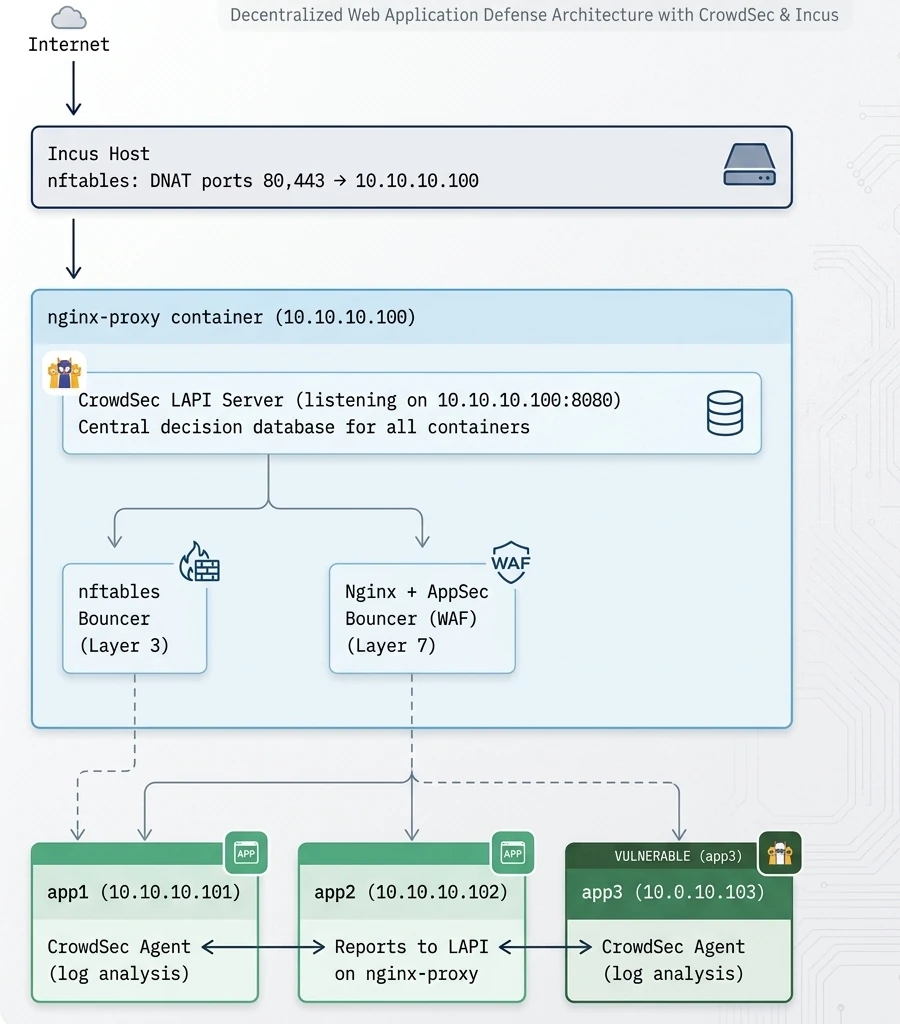
How It Works
- Backend agents detect threats: CrowdSec agents on app containers analyse local logs (SSH, application logs, etc.) and detect malicious behaviour
- Agents report to LAPI: Detected threats are sent to the central LAPI server on nginx-proxy
- LAPI stores decisions: The LAPI maintains a database of all ban decisions from all agents
- Bouncers enforce blocks: The firewall and Nginx bouncers query the LAPI and block IPs at the entry point
- All apps protected: A threat detected by one container results in blocking across the entire infrastructure
What You Get
- Centralised threat intelligence: All containers contribute to and benefit from shared threat detection
- Layer 3 protection: Malicious IPs blocked at the network level via nftables
- Layer 7 WAF: HTTP traffic inspection with virtual patching, SQLi/XSS detection
- Community blocklist: CrowdSec’s crowd-sourced IP reputation data
- IPv4 and IPv6 support: Full dual-stack protection
Prerequisites
- Incus host with port forwarding configured for ports 80 and 443 to your nginx-proxy container
- Debian 13 (Trixie) based Incus containers
- Root or sudo access inside the containers
- Network connectivity between containers (e.g., all on the same bridge network 10.10.10.0/24)
Part 1: Incus Host Configuration
On the Incus host, configure nftables to forward ports 80 and 443 to your nginx-proxy container. Create or edit your NAT rules file (e.g., /etc/nftables.d/incus-nat.nft):
#!/usr/sbin/nft -f
table ip nat {
    chain prerouting {
        type nat hook prerouting priority dstnat; policy accept;
        # Forward HTTP(S) traffic to nginx-proxy container
        iifname $WAN tcp dport { 80, 443 } dnat to 10.10.10.100
    }
    chain postrouting {
        type nat hook postrouting priority srcnat; policy accept;
        # Masquerade outgoing traffic
        oifname $WAN masquerade
    }
}
table ip6 nat {
    chain prerouting {
        type nat hook prerouting priority dstnat; policy accept;
        # Forward HTTP(S) traffic for IPv6
        iifname $WAN ip6 daddr 2001:db8::1 tcp dport { 80, 443 } dnat to fd00::100
    }
    chain postrouting {
        type nat hook postrouting priority srcnat; policy accept;
        # SNAT web container traffic to use public IPv6
        oifname $WAN ip6 saddr fd00::100 snat to 2001:db8::1
        # Masquerade everything else
        oifname $WAN masquerade
    }
}
Replace:
$WANwith your external interface name (e.g.,eth0,enp1s0)10.10.10.100with your container’s internal IPv4 addressfd00::100with your container’s internal IPv6 address (ULA)2001:db8::1with your public IPv6 address
The key point is that traffic arriving at the container’s eth0 retains the original source IP addresses, allowing CrowdSec to identify and block malicious actors on both IPv4 and IPv6.
PART A: nginx-proxy Container Setup (LAPI Server + Bouncers)
Part 2: Container Base Setup
Create the Nginx Proxy container:
incus launch images:debian/13 nginx-proxy -d eth0,piv4.address=10.10.10.100Enter your nginx-proxy container:
incus shell nginx-proxyUpdate the system and install required packages:
apt update && apt upgrade -y
apt install -y curl gnupg apt-transport-https ca-certificates
Part 3: Install nftables
The CrowdSec firewall bouncer requires nftables to insert its ban rules. Since the Incus host already handles port filtering (only forwarding 80/443 to this container), you don’t need to configure any firewall rules manually; CrowdSec will create its own tables and chains automatically.
Install and enable nftables:
apt install -y nftables
systemctl enable nftables --now
That’s it. When the CrowdSec firewall bouncer is installed later, it will automatically create:
table inet crowdsecwith IPv4 blacklist setstable inet crowdsec6with IPv6 blacklist sets
You can verify this after CrowdSec is fully configured by running:
nft list rulesetPart 4: Install Nginx with Lua Support
Install Nginx and the required Lua modules for the CrowdSec bouncer:
apt install -y nginx lua5.1 libnginx-mod-http-lua luarocks lua-cjsonEnable and start Nginx:
systemctl enable nginx --nowPart 5: Install CrowdSec Security Engine (LAPI Server)
Add the CrowdSec repository and install the security engine:
mkdir -p /etc/apt/keyrings
curl -fsSL https://packagecloud.io/crowdsec/crowdsec/gpgkey | gpg --dearmor -o /etc/apt/keyrings/crowdsec.gpg

cat > /etc/apt/sources.list.d/crowdsec.list << 'EOF'
deb [signed-by=/etc/apt/keyrings/crowdsec.gpg] https://packagecloud.io/crowdsec/crowdsec/any any main
deb-src [signed-by=/etc/apt/keyrings/crowdsec.gpg] https://packagecloud.io/crowdsec/crowdsec/any any main
EOF

apt update
apt install -y crowdsec
Configure LAPI to Listen on the Network
By default, CrowdSec’s LAPI only listens on localhost. To allow backend containers to connect, configure it to listen on the container’s IP address.
Edit the main configuration:
vi /etc/crowdsec/config.yamlFind the api section and modify the listen_uri:
api:
  server:
    listen_uri: 10.10.10.100:8080
Alternatively, to listen on all interfaces (use with caution and ensure firewall rules are in place):
api:
  server:
    listen_uri: 0.0.0.0:8080
For IPv6 support, you can use:
api:
  server:
    listen_uri: "[::]:8080"
This listens on all IPv4 and IPv6 addresses.
Install Collections
Install the required collections for WAF functionality:
# Core HTTP scenarios for behavioural detection
cscli collections install crowdsecurity/nginx
cscli collections install crowdsecurity/base-http-scenarios

# AppSec (WAF) collections
cscli collections install crowdsecurity/appsec-virtual-patching
cscli collections install crowdsecurity/appsec-generic-rules

# Linux base collection (for local log analysis)
cscli collections install crowdsecurity/linux
Register the Local Agent
When CrowdSec is installed, it auto-generates a machine entry with a random name. For clarity, register a properly named local agent:
cscli machines add local-agent --auto --forceThis overwrites the auto-generated credentials with a clean local-agent entry that identifies the agent running on the LAPI server itself.
Restart CrowdSec to apply the LAPI configuration:
systemctl restart crowdsecVerify LAPI is listening on the network:
ss -tlnp | grep 8080You should see CrowdSec listening on 10.10.10.100:8080 (or [::]:8080).
Part 6: Configure CrowdSec AppSec Component
The AppSec component is CrowdSec’s WAF engine. It inspects HTTP requests in real-time and blocks malicious payloads.
Create the acquisition configuration:
mkdir -p /etc/crowdsec/acquis.d

cat > /etc/crowdsec/acquis.d/appsec.yaml << 'EOF'
appsec_config: crowdsecurity/appsec-default
labels:
  type: appsec
listen_addr: 127.0.0.1:7422
source: appsec
EOF
Restart CrowdSec to activate the AppSec component:
systemctl restart crowdsecVerify AppSec is listening:
ss -tlnp | grep 7422Part 7: Install the nftables Firewall Bouncer
The firewall bouncer pushes CrowdSec ban decisions into nftables, blocking malicious IPs at layer 3:
apt install -y crowdsec-firewall-bouncer-nftablesThe bouncer automatically registers with the local CrowdSec API during installation and the default configuration works out of the box. Verify the registration:
cscli bouncers listThe bouncer configuration is located at /etc/crowdsec/bouncers/crowdsec-firewall-bouncer.yaml. The defaults are fine; IPv6 support is enabled by default:
nftables:
  ipv4:
    enabled: true
    set-only: false
    table: crowdsec
    chain: crowdsec-chain
  ipv6:
    enabled: true
    set-only: false
    table: crowdsec6
    chain: crowdsec6-chain
Start and enable the bouncer:
systemctl enable crowdsec-firewall-bouncer --now
systemctl status crowdsec-firewall-bouncer
Verify that CrowdSec has created its tables and chains in nftables:
nft list rulesetYou should see table inet crowdsec and table inet crowdsec6 with their respective chains and sets.
Part 8: Install and Configure the Nginx Bouncer
The Nginx bouncer integrates CrowdSec with Nginx, enabling layer 7 WAF capabilities:
apt install -y crowdsec-nginx-bouncerVerify both bouncers are registered:
cscli bouncers listConfigure the Nginx bouncer to use AppSec. Edit the bouncer configuration:
vi /etc/crowdsec/bouncers/crowdsec-nginx-bouncer.confAdd these AppSec settings:
APPSEC_URL=http://127.0.0.1:7422
APPSEC_FAILURE_ACTION=passthrough
APPSEC_CONNECT_TIMEOUT=100
APPSEC_SEND_TIMEOUT=100
APPSEC_PROCESS_TIMEOUT=1000
Test the Nginx configuration:
nginx -tRestart Nginx to apply the changes:
systemctl restart nginxPart 9: Create API Credentials for Backend Agents
Each backend container needs credentials to register its CrowdSec agent with the central LAPI. Use descriptive names based on the container’s function:
# Register agents for each backend container
cscli machines add roundcube-agent --auto
cscli machines add nextcloud-agent --auto
cscli machines add wordpress-agent --auto
Note down the generated passwords — they’re only displayed once. If you lose a password, regenerate it:
cscli machines add roundcube-agent --auto --forceAlternatively, set a specific password:
cscli machines add roundcube-agent -p "YourSecurePassword" --forceList registered machines to verify:
cscli machines listYou should see:
local-agent— The local agent on nginx-proxy (registered in Part 5)roundcube-agent— Remote agent for Roundcube containernextcloud-agent— Remote agent for Nextcloud container- etc.
Part 10: Configure Nginx as Reverse Proxy
Create a reverse proxy configuration for your backend applications:
cat > /etc/nginx/sites-available/reverse-proxy << 'EOF'
server {
    listen 80;
    listen [::]:80;
    server_name example.com;

    # Redirect HTTP to HTTPS
    return 301 https://$server_name$request_uri;
}

server {
    listen 443 ssl http2;
    listen [::]:443 ssl http2;
    server_name example.com;

    # SSL configuration (adjust paths to your certificates)
    ssl_certificate /etc/ssl/certs/example.com.crt;
    ssl_certificate_key /etc/ssl/private/example.com.key;

    # Modern SSL settings
    ssl_protocols TLSv1.2 TLSv1.3;
    ssl_ciphers ECDHE-ECDSA-AES128-GCM-SHA256:ECDHE-RSA-AES128-GCM-SHA256:ECDHE-ECDSA-AES256-GCM-SHA384:ECDHE-RSA-AES256-GCM-SHA384;
    ssl_prefer_server_ciphers off;

    # Logging
    access_log /var/log/nginx/example.com.access.log;
    error_log /var/log/nginx/example.com.error.log;

    location / {
        proxy_pass http://10.10.10.101:8080;  # Your backend app
        proxy_set_header Host $host;
        proxy_set_header X-Real-IP $remote_addr;
        proxy_set_header X-Forwarded-For $proxy_add_x_forwarded_for;
        proxy_set_header X-Forwarded-Proto $scheme;

        # WebSocket support (if needed)
        proxy_http_version 1.1;
        proxy_set_header Upgrade $http_upgrade;
        proxy_set_header Connection "upgrade";
    }
}
EOF
Enable the site and reload Nginx:
ln -s /etc/nginx/sites-available/reverse-proxy /etc/nginx/sites-enabled/
rm /etc/nginx/sites-enabled/default  # Remove default site if present
nginx -t
systemctl reload nginx
PART B: Backend Container Setup (CrowdSec Agents)
Repeat these steps for each backend container (app1, app2, app3, etc.).
Part 11: Install CrowdSec Agent on Backend Container
Enter your backend container:
incus shell roundcubeUpdate and install CrowdSec:
apt update && apt upgrade -y
apt install -y curl gnupg

mkdir -p /etc/apt/keyrings
curl -fsSL https://packagecloud.io/crowdsec/crowdsec/gpgkey | gpg --dearmor -o /etc/apt/keyrings/crowdsec.gpg

cat > /etc/apt/sources.list.d/crowdsec.list << 'EOF'
deb [signed-by=/etc/apt/keyrings/crowdsec.gpg] https://packagecloud.io/crowdsec/crowdsec/any any main
deb-src [signed-by=/etc/apt/keyrings/crowdsec.gpg] https://packagecloud.io/crowdsec/crowdsec/any any main
EOF

apt update
apt install -y crowdsec
Part 12: Configure Agent to Use Remote LAPI
The backend agent should not run its own LAPI server. Instead, it connects to the LAPI on nginx-proxy.
First, disable the local LAPI. Edit the configuration:
vi /etc/crowdsec/config.yamlFind and modify the api section:
api:
  server:
    enable: false
Configure the agent to connect to the remote LAPI. Edit the local API credentials:
vi /etc/crowdsec/local_api_credentials.yamlReplace the contents with (using RoundCube as an example):
url: http://10.10.10.100:8080/
login: roundcube-agent
password: PASSWORD_FROM_PART_9
Use the machine name and password you created in Part 9.
Part 13: Install Relevant Collections on Backend
Install collections based on what the backend container runs:
# For a general Linux server
cscli collections install crowdsecurity/linux
cscli collections install crowdsecurity/sshd

# For a web application server (if running Apache/Nginx locally)
cscli collections install crowdsecurity/apache2
# or
cscli collections install crowdsecurity/nginx

# For specific applications
cscli collections install crowdsecurity/wordpress  # If running WordPress
cscli collections install crowdsecurity/nextcloud  # If running Nextcloud
Part 14: Configure Log Acquisition
Debian 13 (Trixie) uses journald by default instead of traditional log files. CrowdSec can read directly from journald for system services, while applications like Apache and Nginx typically still write to their own log files.
Create acquisition files in /etc/crowdsec/acquis.d/ for each log source:
System Logs via journald (SSH, system services)
cat > /etc/crowdsec/acquis.d/journald.yaml << 'EOF'
source: journalctl
journalctl_filter:
  - "_SYSTEMD_UNIT=ssh.service"
  - "_SYSTEMD_UNIT=sshd.service"
labels:
  type: syslog
EOF
Apache Logs (if running Apache)
cat > /etc/crowdsec/acquis.d/apache2.yaml << 'EOF'
filenames:
  - /var/log/apache2/access.log
  - /var/log/apache2/error.log
  - /var/log/apache2/*-access.log
  - /var/log/apache2/*-error.log
labels:
  type: apache2
EOF
Nginx Logs (if running Nginx)
cat > /etc/crowdsec/acquis.d/nginx.yaml << 'EOF'
filenames:
  - /var/log/nginx/access.log
  - /var/log/nginx/error.log
  - /var/log/nginx/*-access.log
  - /var/log/nginx/*-error.log
labels:
  type: nginx
EOF
Application-Specific Logs
For other applications, create additional files in /etc/crowdsec/acquis.d/. For example, for Nextcloud:
cat > /etc/crowdsec/acquis.d/nextcloud.yaml << 'EOF'
filenames:
  - /var/www/nextcloud/data/nextcloud.log
labels:
  type: nextcloud
EOF
Adjust the log paths based on what services run in your container.
Part 15: Restart and Verify Agent
Restart CrowdSec:
systemctl restart crowdsecCheck the agent status:
systemctl status crowdsecVerify connection to the remote LAPI:
cscli lapi statusYou should see a successful connection to http://10.10.10.100:8080/.
Check that the machine appears on the LAPI server (run this on nginx-proxy):
cscli machines listThe agent should show as validated.
PART C: Verification and Testing
Part 16: Test the Complete Setup
On nginx-proxy: Check Overall Status
View metrics from all connected agents:
cscli metricsList all registered machines (agents):
cscli machines listList all registered bouncers:
cscli bouncers listTest Layer 7 WAF (AppSec)
From outside your network, attempt to access a sensitive file:
curl -I https://example.com/.envExpected response: HTTP/1.1 403 Forbidden
Test SQL injection detection:
curl "https://example.com/?id=1'%20OR%20'1'='1"Expected response: 403 Forbidden
Test Cross-Container Threat Sharing
Generate a test alert on a backend container. On app1:
# Simulate failed SSH attempts (this will trigger sshd scenarios)
# Or manually add a decision for testing:
# Note: Agents can't add decisions directly, they report alerts
# The LAPI converts alerts to decisions based on scenarios
For testing, you can manually add a decision on the LAPI server (nginx-proxy):
cscli decisions add --ip 192.0.2.1 --duration 1h --reason "Test ban from app1"
cscli decisions add --ip 2001:db8::1 --duration 1h --reason "Test IPv6 ban"
Verify the ban appears in nftables on nginx-proxy:
nft list ruleset | grep -E "192.0.2.1|2001:db8::1"Check decisions across all sources:
cscli decisions listRemove test bans:
cscli decisions delete --ip 192.0.2.1
cscli decisions delete --ip 2001:db8::1
Verify Alerts from Backend Containers
When a backend container detects suspicious activity, it sends alerts to the LAPI. View all alerts:
cscli alerts listFilter by machine:
cscli alerts list --machine app1Part 17: Monitor AppSec Metrics
On nginx-proxy, view WAF statistics:
cscli metrics show appsecThis shows:
- Total requests processed
- Requests blocked
- Rules triggered
PART D: Optional Enhancements
Part 18: Enrol in CrowdSec Console
The CrowdSec Console provides a web dashboard for monitoring your security engine and accessing the community blocklist.
- Create an account at https://app.crowdsec.net
- Get your enrolment key from the console
- On nginx-proxy, enrol your instance:
cscli console enroll <your-enrolment-key>
systemctl restart crowdsec
Benefits:
- Web-based dashboard for all your instances
- Access to the community blocklist
- Alert visualisation and statistics
Part 19: Configure Whitelists
To prevent blocking trusted IPs (monitoring systems, your office IP, etc.):
vi /etc/crowdsec/parsers/s02-enrich/my-whitelists.yamlname: my-whitelists
description: "Whitelist trusted IPs"
whitelist:
reason: "Trusted infrastructure"
ip:
- "10.10.10.0/24" # Internal network
- "203.0.113.50" # Office IP
- "2001:db8::/32" # Trusted IPv6 rangeReload CrowdSec:
systemctl reload crowdsecPart 20: Set Up Notifications (Optional)
Configure CrowdSec to send notifications when attacks are detected:
vi /etc/crowdsec/notifications/http.yamlExample for a webhook:
type: http
name: webhook_notify
log_level: info
format: |
  {
    "alert": "{{.Alert.Scenario}}",
    "source_ip": "{{.Alert.Source.IP}}",
    "country": "{{.Alert.Source.Cn}}",
    "timestamp": "{{.Alert.StartedAt}}"
  }
url: https://your-webhook-url.com/crowdsec
method: POST
headers:
  Content-Type: application/json
Enable the notification in profiles:
vi /etc/crowdsec/profiles.yamlAdd notifications: [webhook_notify] to the relevant profile.
Maintenance and Operations
Useful Commands
View Active Decisions (Bans)
cscli decisions list
cscli decisions list --ip 192.0.2.1  # Check specific IP
cscli decisions list --type ban      # Only bans
Manage Decisions
# Add manual ban
cscli decisions add --ip 192.0.2.1 --duration 24h --reason "Manual ban"

# Add IPv6 ban
cscli decisions add --ip 2001:db8::1 --duration 24h --reason "Manual IPv6 ban"

# Add range ban
cscli decisions add --range 192.0.2.0/24 --duration 24h --reason "Block range"

# Remove ban
cscli decisions delete --ip 192.0.2.1
View and Manage Alerts
cscli alerts list
cscli alerts list --since 1h         # Last hour
cscli alerts list --machine app1     # From specific machine
cscli alerts inspect <alert_id>      # Detailed view
cscli alerts delete --all            # Clear all alerts
Manage Machines (Agents)
cscli machines list
cscli machines add <name> -p <password> --force
cscli machines delete <name>
cscli machines validate <name>
Manage Bouncers
cscli bouncers list
cscli bouncers add <name>
cscli bouncers delete <name>
Update Hub (Collections, Parsers, Scenarios)
cscli hub update
cscli hub upgrade
View Logs
# CrowdSec engine logs
journalctl -u crowdsec -f

# Firewall bouncer logs
journalctl -u crowdsec-firewall-bouncer -f

# Nginx access logs
tail -f /var/log/nginx/access.log
Troubleshooting
LAPI Connection Issues
Backend agent can’t connect to LAPI
- Check network connectivity:
curl -v http://10.10.10.100:8080/health - Check credentials:
# On backend cat /etc/crowdsec/local_api_credentials.yaml # On nginx-proxy cscli machines list - Check LAPI is listening on the correct interface:
# On nginx-proxy ss -tlnp | grep 8080 - If using a firewall on the Incus host, ensure it allows traffic between containers on port 8080.
Machine shows as not validated
On nginx-proxy:
cscli machines validate <machine_name>AppSec Not Blocking Requests
- Verify AppSec is listening:
ss -tlnp | grep 7422 - Check Nginx bouncer configuration:
grep APPSEC /etc/crowdsec/bouncers/crowdsec-nginx-bouncer.conf - Verify Nginx loaded the bouncer:
nginx -T | grep -i crowdsec - Check for errors:
journalctl -u crowdsec -n 100 | grep -i appsec
Firewall Bouncer Not Blocking
- Check bouncer status:
systemctl status crowdsec-firewall-bouncer - Verify API connection:
grep api_url /etc/crowdsec/bouncers/crowdsec-firewall-bouncer.yaml - Check nftables for CrowdSec tables and sets:
nft list ruleset | grep -A10 "table inet crowdsec" - Check bouncer logs:
journalctl -u crowdsec-firewall-bouncer -n 50 - Verify nftables service is running:
systemctl status nftables
IPv6 Not Being Blocked
- Ensure IPv6 is enabled in firewall bouncer config:
grep -A5 ipv6 /etc/crowdsec/bouncers/crowdsec-firewall-bouncer.yaml - Check nftables has IPv6 sets:
nft list ruleset | grep crowdsec6 - Test IPv6 ban:
cscli decisions add --ip 2001:db8::dead --duration 1m --reason "IPv6 test" nft list set inet crowdsec6 crowdsec6-blacklists
High False Positive Rate
- Check which rules are triggering:
cscli alerts list -o json | jq '.[] | {scenario, source_ip}' - Add trusted IPs to whitelist (see Part 19)
- Adjust scenario sensitivity if needed:
# View scenario configuration cscli scenarios inspect crowdsecurity/http-probing
Security Considerations
- Secure LAPI communication: Consider using TLS for LAPI connections in production environments
- Restrict LAPI access: Only allow connections from trusted container IPs via firewall rules
- Strong passwords: Use strong, unique passwords for machine registrations
- Regular updates: Run
cscli hub update && cscli hub upgraderegularly - Monitor alerts: Review
cscli alerts listperiodically for attack patterns - Backup configurations: Keep copies of
/etc/crowdsec/configurations - Test changes: Always test configuration changes before applying to production
Conclusion
You now have a fully functional, centralised WAF infrastructure with:
- Central LAPI server on nginx-proxy coordinating threat intelligence across all containers
- Distributed detection with CrowdSec agents on backend containers monitoring local logs
- Centralised enforcement blocking malicious IPs at the entry point before they reach any backend
- Network-level protection via nftables for both IPv4 and IPv6
- Application-level WAF via CrowdSec AppSec inspecting HTTP requests
- Community threat intelligence through CrowdSec’s shared blocklist
This architecture ensures that a threat detected by any container results in immediate protection for all containers, providing true defence in depth across your infrastructure.